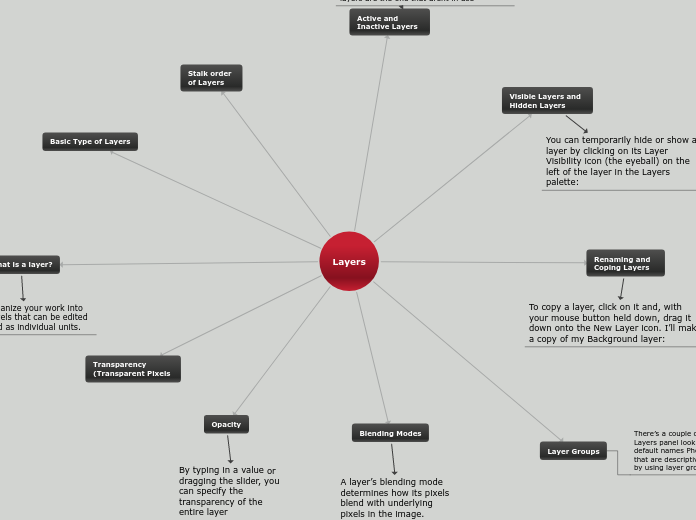
Layers
What is a layer?
let you organize your work into distinct levels that can be edited and viewed as individual units.
Transparency (Transparent Pixels
Basic Type of Layers
Opacity
By typing in a value or dragging the slider, you can specify the transparency of the entire layer
Stalk order of Layers
Blending Modes
A layer’s blending mode determines how its pixels blend with underlying pixels in the image.
Layer Groups
There’s a couple of things we can do to keep the Layers panel looking neat and tidy. Replacing the default names Photoshop gives them, with names that are descriptive and meaningful. Another way, is by using layer groups.
Renaming and Coping Layers
To copy a layer, click on it and, with your mouse button held down, drag it down onto the New Layer icon. I’ll make a copy of my Background layer:
Visible Layers and Hidden Layers
You can temporarily hide or show a layer by clicking on its Layer Visibility icon (the eyeball) on the left of the layer in the Layers palette:
Active and Inactive Layers
An active layer is anything that is being used at the time. Usually it has an "eye" peeking out from a box. If you want the layer to be inactive then you just click on the eye and it will turn the layer off. Inactive layers are the one that arent in use