Checklists are a powerful way to save time and get consistent results when completing complicated tasks. This template helps you categorize your to-dos into personal, work, and other sections for better organization. Simply fill in each category with your tasks and prioritize them according to your needs. Whether you’re managing daily simple tasks, work assignments, or other things you need to do, this checklist ensures you stay organized and focused on what matters most. This mind map contains some example checklists that you can modify or delete. Create your own checklists and add a link to them. Create or attach checklist Create or attach checklist. tasks Add tasks. You can copy this topic to create a new category of checklists. Review a project Use this checklist to review the status of a project and decide on corrective actions. Review Risks Review Issues Review resources Review budget Review schedule Evaluate a quotation Use this checklist to help evaluate a quotation received from a supplier. Reputation Warranty Availability Pricing Requirements Set priorities Use this checklist to help with task prioritisation. Neither important nor urgent Identify tasks that you will defer and may never do. Urgent Identify tasks that are 'urgent' as defined by someone else, but do not contribute to longer term goals. Important Identify tasks that contribute to long term goals, but are not time-sensitive. Important and urgent Identify which tasks are both important (contribute towards long term goals) and time-sensitive. You can copy this topic to create a new category of checklists. Prepare for an online meeting Turn on Focus Assist Spare mouse battery Shut down other apps Check sound and camera Set a backdrop Either tidy up your office, or arrange a green screen and electronic backdrop. Close windows & doors Minimise external noise. Set phones to silent Set mobile and desk phones to silent. Check the meeting link Materials circulated beforehand Monthly plan Review Daily Dashboard Review your Daily Dashboard map to make sure it is helping you to manage your workload effectively. Administrative updates Set training objectives Schedule meetings and reviews Review appointments and deadlines Weekly plan Empty inbox Set 3 major objectives Daily plan Add here your to-dos for the day! task subtask Top 3 actions for today Review appointments Review starred emails Update time sheets Карты ума помогают проводить мозговые штурмы, устанавливать взаимосвязи между понятиями, организовывать и генерировать идеи. Однако шаблоны mind map предлагают более простой способ начать работу, поскольку они представляют собой рамки, содержащие информацию о конкретном предмете с направляющими инструкциями. По сути, шаблоны mind map обеспечивают структуру, которая объединяет все элементы конкретной темы и служит отправной точкой для вашей личной mind map. Они представляют собой ресурс, обеспечивающий практическое решение для создания карты ума по определенной теме, будь то бизнес или образование. Mindomo предлагает вам умные шаблоны карт разума, которые позволят вам работать и думать без усилий. Вы можете выбрать один из множества шаблонов ментальных карт из бизнес- или образовательных аккаунтов Mindomo или создать свои собственные шаблоны ментальных карт с нуля. Любую карту мыслей можно превратить в карту-шаблон, добавив к одной из ее тем дополнительные направляющие заметки.Checklist Template
This template helps you to create your own map of checklists.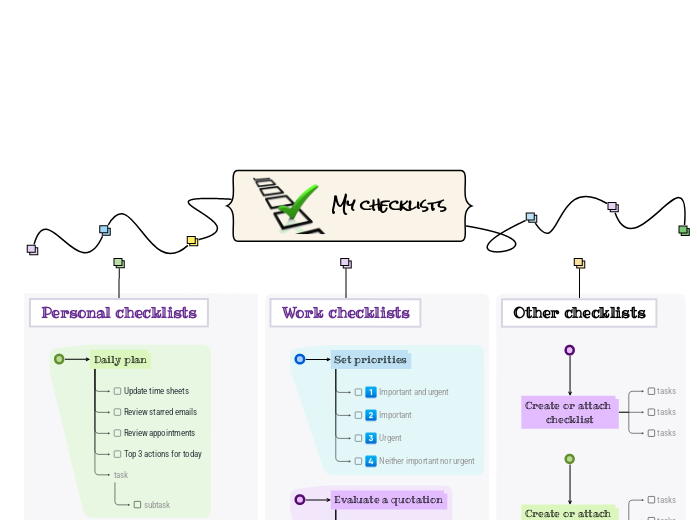
Об этом шаблоне
Stay on top of your tasks with the My Checklist template.
My checklists
You can add new checklists OR add new steps to the existing ones.
Read more about how to use checklists in the Mindomo blog.Other checklists
To add a new checklist, press the Insert or TAB key or create a checklist on the spot.Work checklists
To add a new checklist to 'Work checklists', press the Insert key.
To add a new step to Set priorities, press Insert or TAB key.Personal checklists
To add a new checklist to 'Personal checklists', press the Insert or TAB key.
To add a new step to 'Prepare for an
online meeting', press Insert or click the button below.
Press Enter to add another step to 'Prepare for an
online meeting'.
Press Enter to add another step to 'Prepare for an
online meeting'.
Press Enter to add another step to 'Prepare for an
online meeting'.
Press Enter to add another step to 'Prepare for an
online meeting'.
Press Enter to add another step to 'Prepare for an
online meeting'.
Press Enter to add another step to 'Prepare for an
online meeting'.
Press Enter to add another step to 'Prepare for an
online meeting'.
To add a new step to 'Monthly plan', press Insert or Tab key.
Press Enter to add another task.
Press Enter to add another task.
Press Enter to add another task.
Press Enter to add another task.
Press Enter to add another task.
To add a new step to 'Weekly plan', press Insert or Tab key.
Press Enter to add another step to 'Weekly plan'.
Press Enter to add another step to 'Weekly plan'.
Press Enter to add another step to 'Weekly plan'.
To add a new step to 'Daily plan', press Insert or Tab key.
Add notes
Add hyperlink
Press Enter to add another step to 'Daily plan'.
Add notes
Add hyperlink
Press Enter to add another step to 'Daily plan'.
Add notes
Add hyperlink
Press Enter to add another step to 'Daily plan'.
Add notes
Add hyperlink
Press Enter to add another task to 'Daily plan'.Зачем использовать шаблон карты ума Mindomo?
Шаблон обладает различными функциональными возможностями:
-
Продукты
-
Использование
- Общие применения
- Ментальные карты для образования
- Ментальные карты для бизнеса
- Ментальные карты для личного развития
- Технология вспомогательная
- Командное сотрудничество
- Брифы для маркетинговых кампаний
- Воркшопы по выявлению потребностей клиента для консультантов
- Маршруты онбординга для HR и L&D
- Управление знаниями
- Матрица навыков команды
- Библиотека проектов
- Роли
- Маркетологи
- HR и L&D
- Консультанты
- Управление проектами
- Планирование маркетинговых кампаний
- Развёртывание обучения сотрудников
- Объём работ
- Организация идей
- Деревья проблем
- Анализ потребностей в обучении
- Преимущества ментальных карт
-
Решения
- Руководства
- Создание презентаций с помощью ментальных карт
- Как учиться с помощью ментальных карт
- Планирование и организация с ментальными картами
- Как расставить приоритеты задач с помощью ментальных карт
- Как делать заметки с помощью ментальных карт
- Реальные истории клиентов
- Масштабирование образовательного контента для 11 000 врачей
- Командный workflow: от пробной версии до незаменимого инструмента за два месяца
- 10 лет без слайдов: новый взгляд на лекции по архитектуре
- Читать все истории
-
Ресурсы
- Основы
- Что такое ментальная карта?
- Топ 29 примеров ментальных карт
- Что такое концептуальная карта?
- Идеи для ментальных карт для студентов
- Руководства и Поддержка
- Видеоуроки
- Справочный центр
- Форум
- Примеры и шаблоны
- Идеи для ментальных карт
- Как создать ментальную карту?
- Страницы возможностей
- Образование
- Задания для учителей
- Рабочее и Личное
- Настольное
- Блог Mindomo
- Цены
- Войти
- Регистрация
- Панель управления
Управление знаниями
Преимущества ментальных карт
Почему визуальное мышление облегчает запоминание и планирование.
Основы
Руководства и Поддержка
Примеры и шаблоны
Страницы возможностей
 Блог
Блог Mindomo
Руководства, примеры и исследования о визуальном мышлении.
Все статьи
Блог
Блог Mindomo
Руководства, примеры и исследования о визуальном мышлении.
Все статьи