Group 1
Type in the name of the first group and press Enter. Double-click in the background to add items to this group, or in the overlaps between the groups.
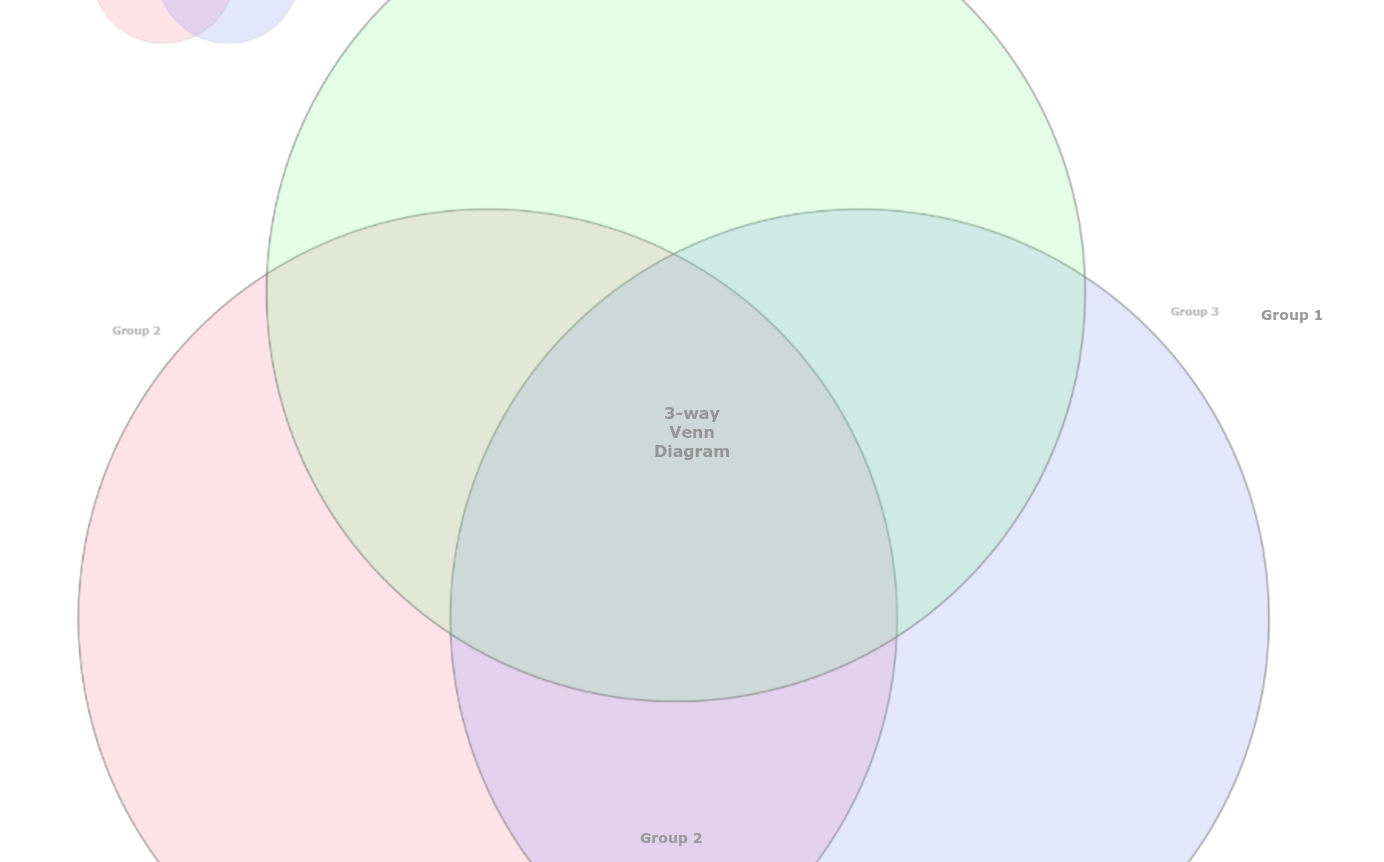
A three-way Venn Diagram helps to understand the similarities and differences between items, by showing their membership of three groups.
Free with a Mindomo account. Opens your own copy in the editor.
Explore the relationships between three different sets of data using the 3-Way Venn Diagram template. This template features three intersecting circles that allow you to compare and analyze data across multiple dimensions. Start by filling in each circle with your data sets and use the overlapping areas to identify commonalities and differences.
This diagram helps you visualize how the sets interact, making it ideal for data analysis, problem-solving, and strategic planning. Perfect for presentations, reports, and collaborative projects, this template provides a clear and comprehensive view of complex relationships.
What’s inside this template
Central topic
3-way Venn Diagram
A Venn Diagram compares items by assigning them to groups. An item can belong to: No group, if it is placed outside the circles One group only, if placed in one of the crescents Two groups, if placed in the overlap area between two groups Three groups, if placed in the overlap area of all three groups. The item counts (and not the areas of the circles and their overlap) indicate the population of each group or the overlap between groups.
Type in the name of the first group and press Enter. Double-click in the background to add items to this group, or in the overlaps between the groups.
Type in the name of the second group and press Enter. Double-click in the background to add items to this group, or in the overlaps between the groups.
Type in the name of the third group and press Enter. Double-click in the background to add items to this group, or in the overlaps between the groups.
Click “Use this template” and sign in with a free account.
Replace the topics and fill in the notes.
Share, present or export it, or switch it to an outline or Gantt view.
Create a Venn Diagram
Free with a Mindomo account. Opens your own copy in the editor.