
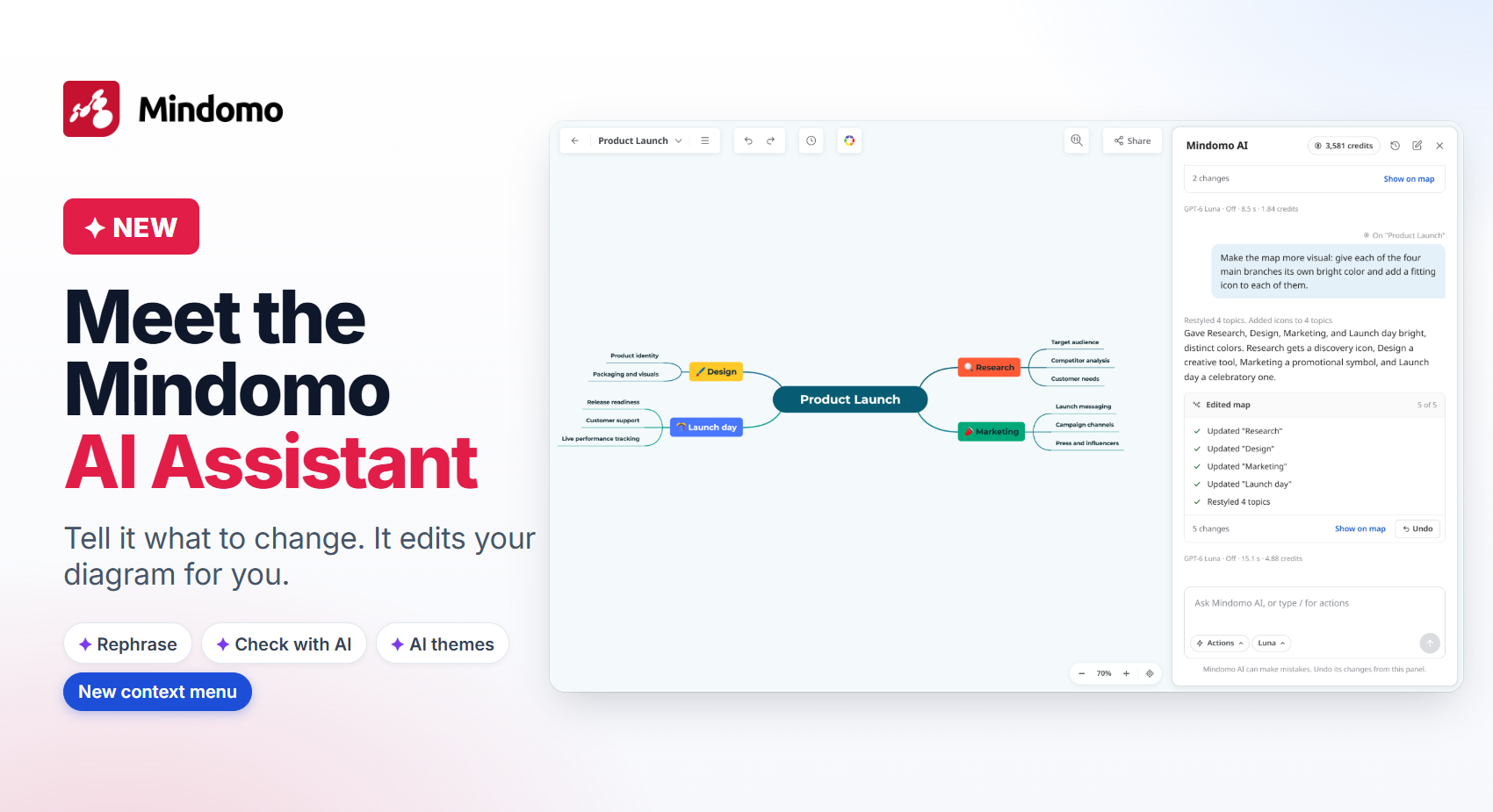
Mindomo AI used to generate content from a single topic. Now you can talk to it, just like you chat with ChatGPT or Claude, but inside Mindomo while you edit your diagrams. This release brings 4 new updates: the AI Assistant, new ways to check and rephrase your text with AI, AI-generated themes and a redesigned context menu.
1. 🤖 Ask the AI Assistant, and it edits your diagram
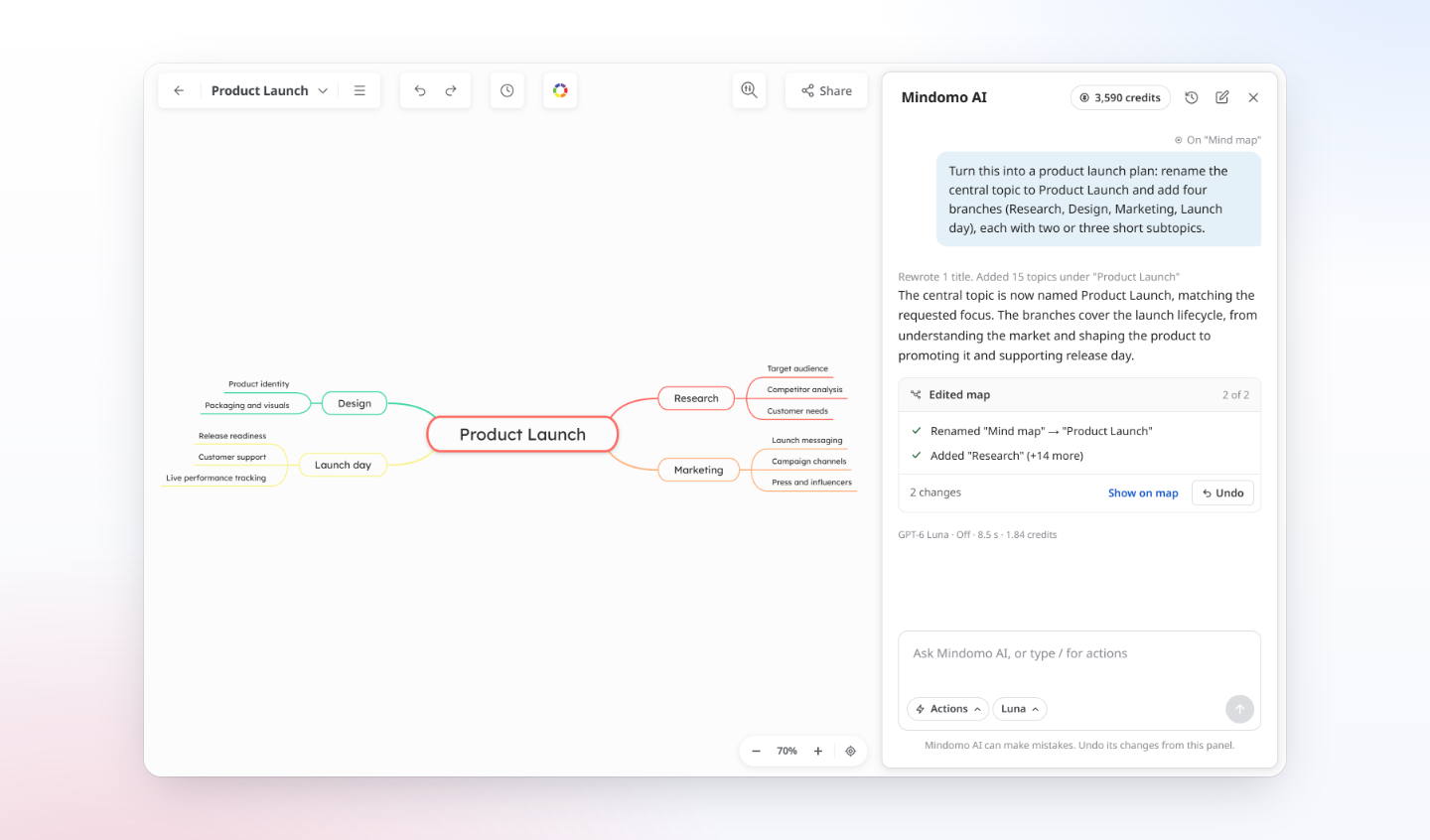
Click Ask AI in the bottom-right corner of the diagram editor to open the chat panel. Describe the change in plain text, such as “Add four branches for Research, Design, Marketing and Launch day”, “Group these ideas under three themes” or “Rewrite this branch in simpler words”, and the Assistant adds, reorganizes or rewrites the topics for you.
After each request, the Assistant lists what it changed. Click Show on map to see the edits, or Undo to revert them right from the chat panel.
2. ✍️ Check and rephrase your text with AI
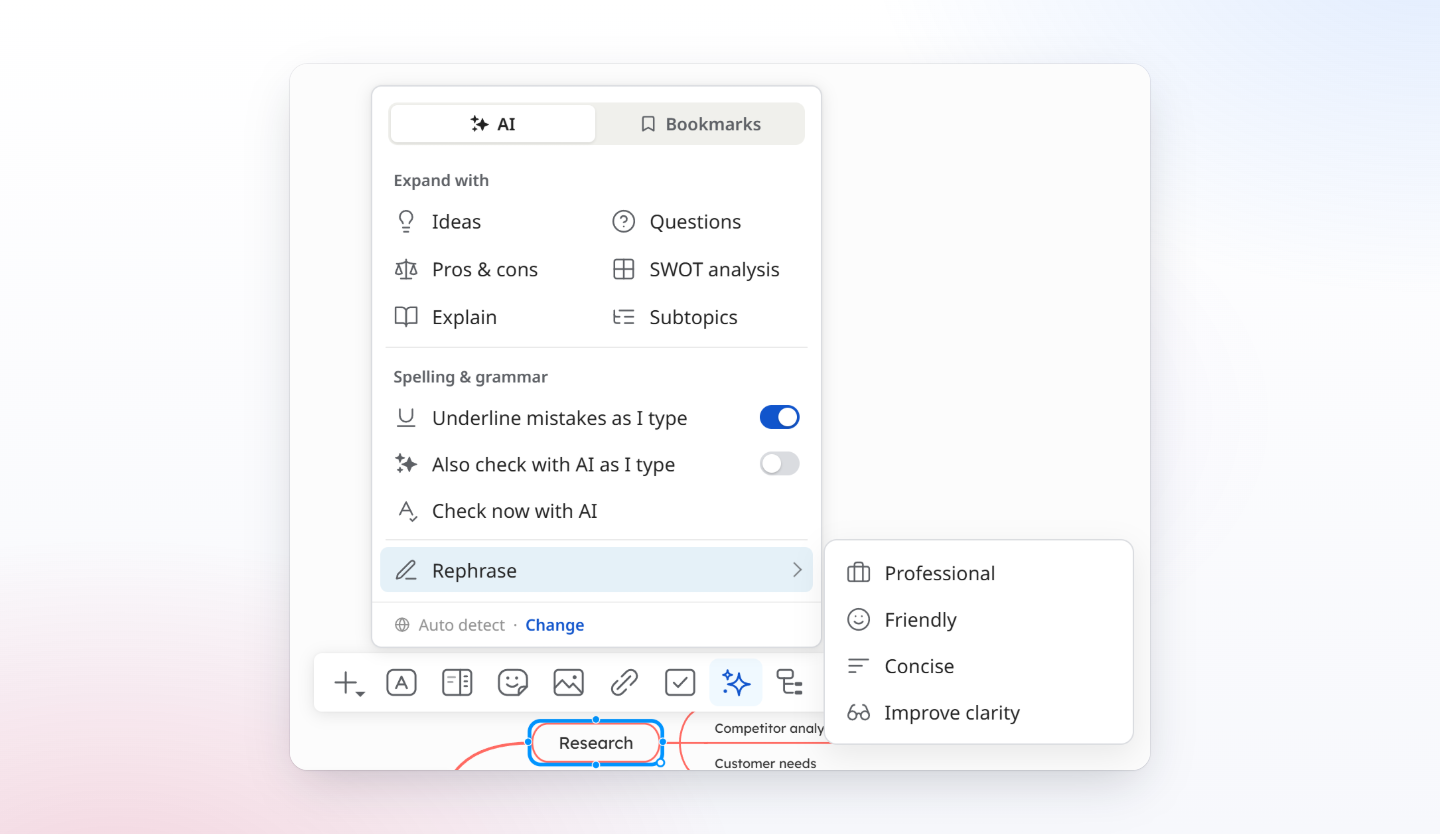
Select a topic and open the AI menu (the ✨ button in the context menu). Choose Check now with AI to check the topic’s spelling and grammar whenever you want, or Rephrase to make your wording more professional, friendlier, more concise or clearer.
3. 🎨 Let AI design your theme
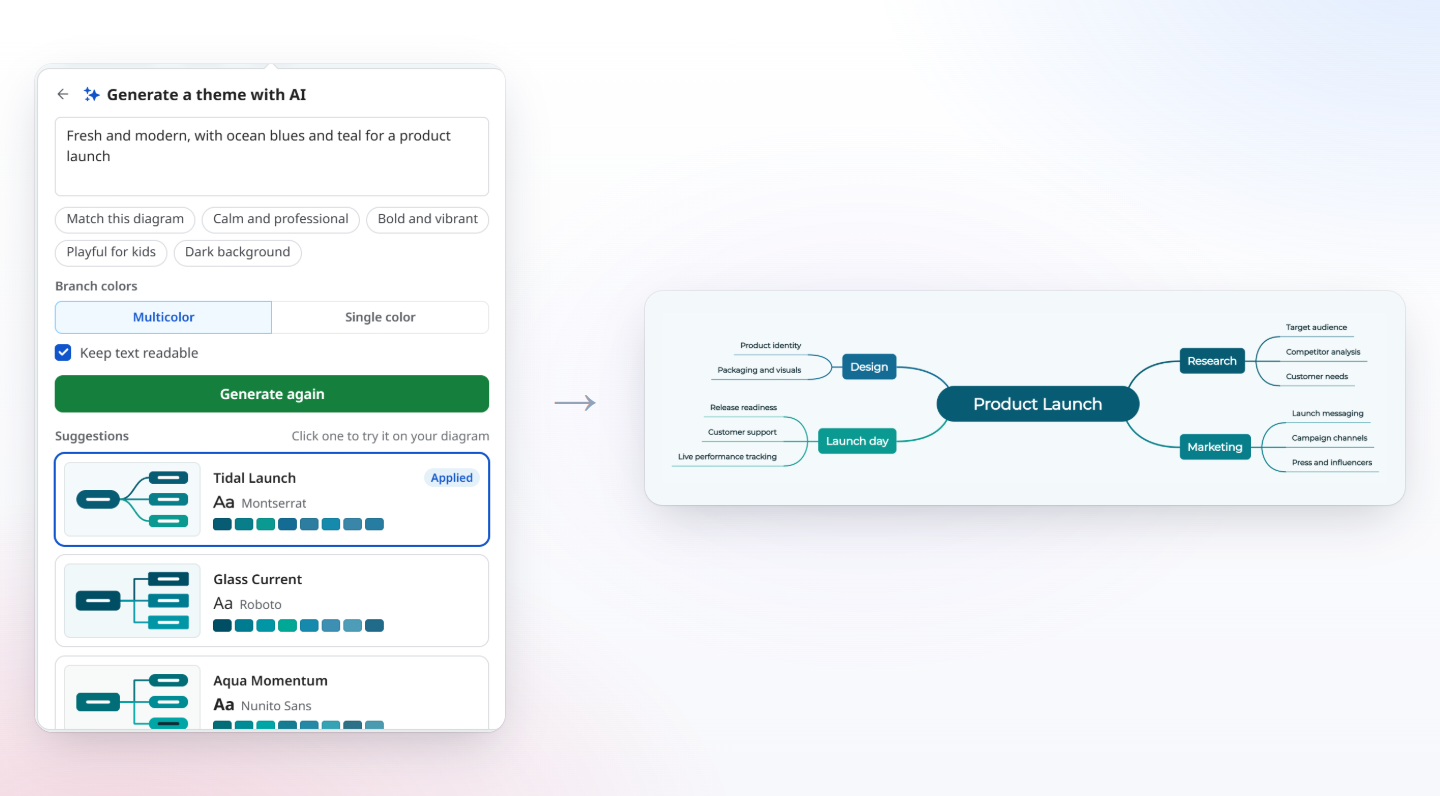
Open the Theme Styling Wheel and click Generate with AI. Describe the look you want, or pick a preset such as “Calm and professional” or “Match this diagram”, and choose multicolor or single-color branches. Mindomo AI creates custom themes for your diagram, and you click one to try it.
4. 🖱️ A cleaner, quicker context menu
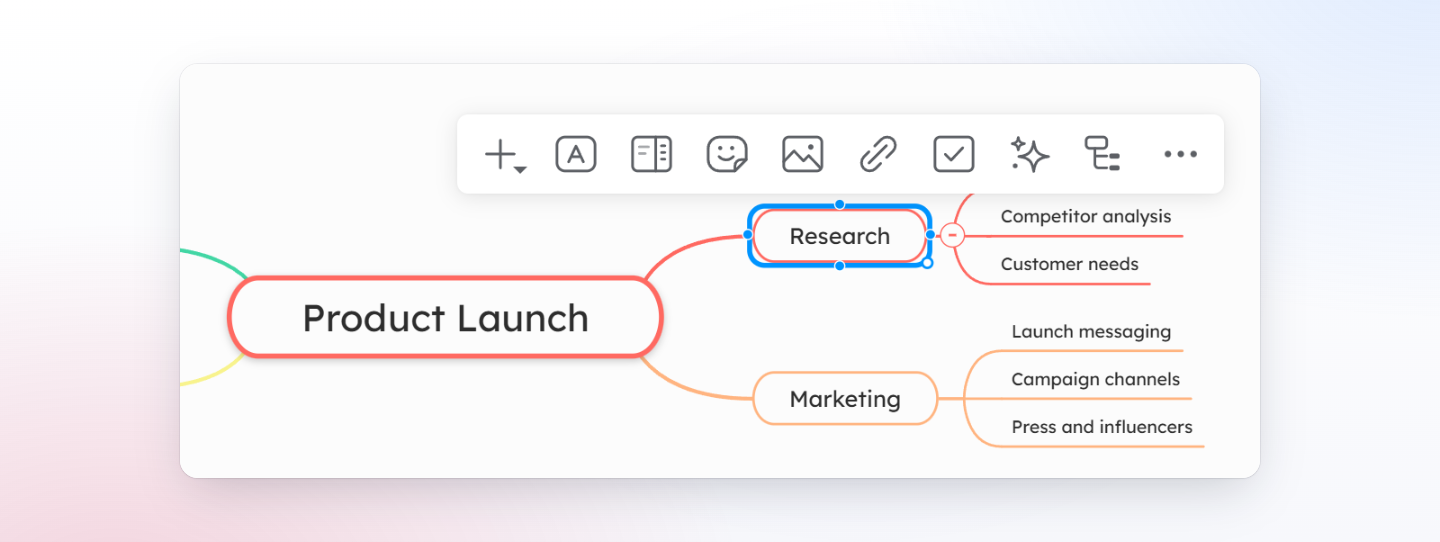
The context menu that appears when you select a topic has a new, more modern look. Everything you use most, from notes, icons, images and links to tasks and the AI menu, is one click away.
✨ There’s a lot more to discover
Generate whole mind maps from a topic, a text or a web page, then refine them with the AI Assistant. See everything Mindomo AI can do on our AI mind map generator page.
🗨️ Your feedback is always welcome
Have questions or ideas about the AI Assistant or the new context menu? Leave a comment on our forum. We’d love to hear how you’re using them. To see every update we ship, check our What’s new page.
Keep it smart, simple, and creative!
Silvana
The Mindomo Team