
Last year we launched the Mindomo API so that developers could create, import, and export diagrams from their own code. Today we are taking two big steps further:
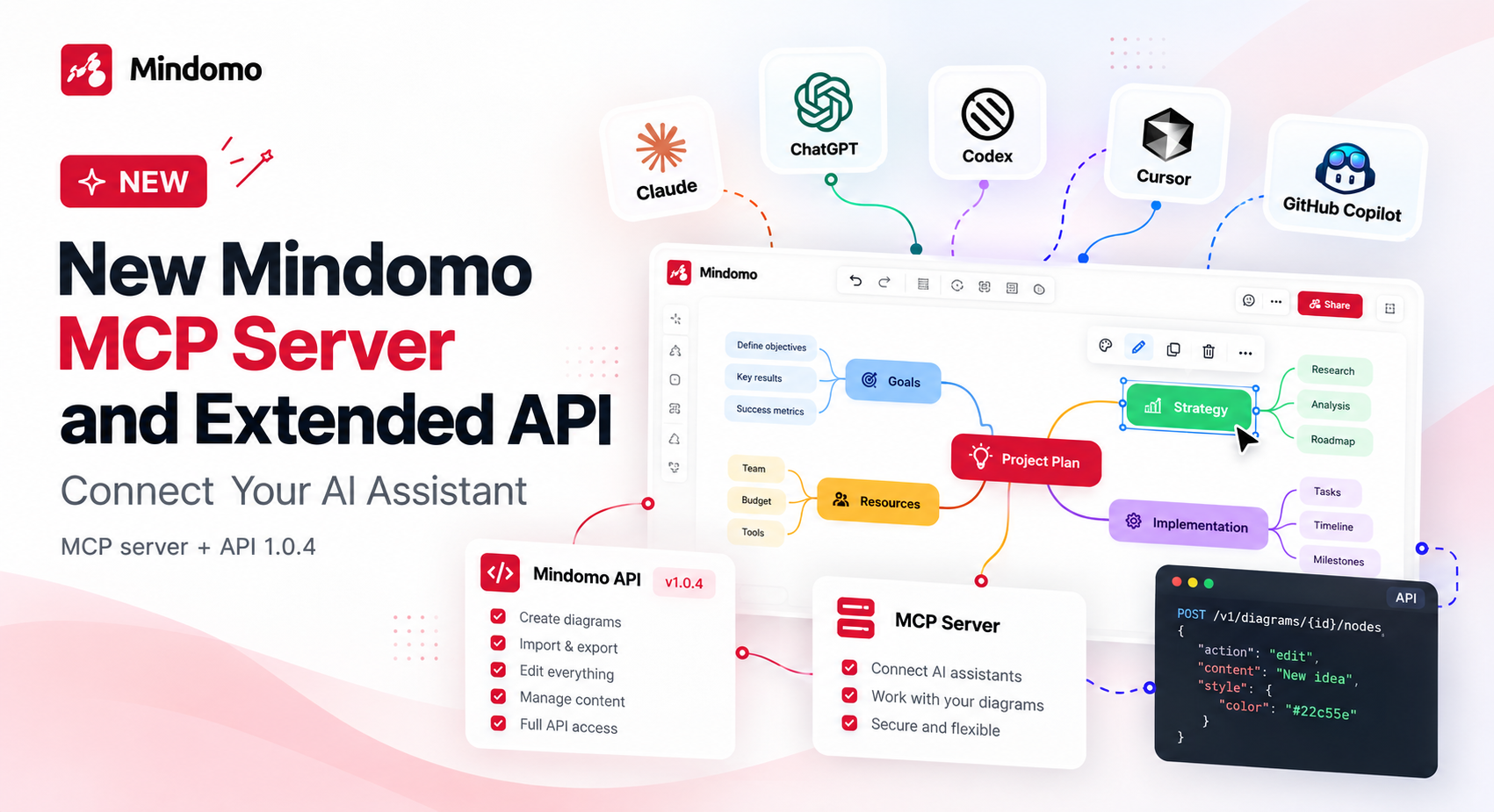
- The new Mindomo MCP server lets AI assistants such as Claude, ChatGPT, Codex, Cursor, and GitHub Copilot work directly in your Mindomo diagrams.
- The extended Mindomo API (version 1.0.4) goes beyond creating and exporting diagrams: it can now edit everything inside them.
Both run on the same engine. Whether you ask an assistant in your own words or write code, the result is a real Mindomo diagram that you can open, share, and keep working on across platforms (web, desktop, and mobile).
🤖 Meet the Mindomo MCP server
MCP (Model Context Protocol) is an open standard that lets AI assistants use tools from other apps. Once you connect Mindomo, your assistant can search, read, create, edit, style, and export the diagrams in your account. You describe what you want, the assistant picks the right tool, and it tells you what it changed.
For example, you can ask:
- “Make a mind map from these meeting notes.”
- “Summarize the Risks branch of my Q3 launch map.”
- “Give every task under Email an owner and a due date next week.”
- “Turn this into an org chart with a calm blue theme.”
- “Export this map as a PDF.”
If you have the map open in Mindomo while the assistant works on it, you see its changes as they happen, and the assistant shows up as a collaborator. In ChatGPT, the assistant can also show the map right in the conversation, as an interactive view you can pan, zoom, and expand. Other clients (like Claude or Cursor) give you a link that opens the map in Mindomo.
✨ What your assistant can do
- Read: list the diagrams you own, read a whole map with its relations and boundaries, or read a single branch. The assistant can also read maps shared with you.
- Search: find diagrams and topics by keyword, task, assignee, or date, across everything you can access.
- Create: build a complete diagram in one step, with topics and subtopics, relations, boundaries, summaries, and a theme.
- Edit: add, rename, move, or delete topics, set notes, links, and icons, connect ideas with relations, group them with boundaries and summaries, and add comments.
- Plan tasks: fill in Mindomo’s own task fields, such as due dates, priority, progress, duration, milestones, and assignees. The tasks then appear in your task list and due-date reminders, just like tasks you add yourself.
- Style: switch a map’s layout, apply a theme, or change its background. You can even create your own theme by describing the look you want, such as an ocean palette with rounded shapes.
- Templates: turn a map into a reusable template, with placeholder topics, guidance for each section, and repeatable branches you can insert as many times as you need.
- Export: get the map as a PDF, PNG, SVG, Word, Markdown, OPML, Excel, or PowerPoint file, and more.
- Undo: ask the assistant to undo a change it made. It can revert its own edits from the last 30 days, and it never overwrites work that people added.
The full list of tools is in the MCP tools reference.
🔌 Connect in about a minute
Every client connects to the same server URL: https://www.mindomo.com/mcp
- Add the server. Paste the URL into your AI client. In Claude, open Settings, then Connectors, and click Add custom connector. In ChatGPT, open Settings, then Apps & Connectors, turn on Developer mode, and click Create. You can also give your agent the URL and ask it to connect.
- Sign in and approve. A browser window opens. Sign in with your Mindomo account, review the permissions the assistant requests, and click Allow access. There is no API key to copy or paste.
- Just ask. Describe the map, summary, or change you want, and the assistant reports back with a link to the diagram.
Step-by-step instructions for Claude, Claude Code, ChatGPT, Codex, Cursor, and VS Code are on the Mindomo MCP page.
🔒 You stay in control
- Connections use OAuth 2.1, so you never share your Mindomo password with the assistant.
- You approve specific permissions on a Mindomo consent screen: reading, creating, editing, and deleting diagrams, and working with themes.
- The assistant can only open diagrams you already have access to, and it never gets more permissions on them than you have.
- The MCP page in your Mindomo account lists your connected apps. Remove one and its access ends immediately.
- Deleted diagrams stay in the recycle bin for 30 days, and Mindomo keeps a version history of every diagram.
- To show a map inside ChatGPT, Mindomo creates a read-only viewer link for it, which you can remove at any time from the map’s share settings.
Keep in mind that whatever the assistant reads through Mindomo, for example, the topics of a map you ask it to summarize, is processed by your AI provider under its own terms and privacy settings. Check those if your maps hold sensitive information.
🛠️ What’s new in Mindomo API 1.0.4
Until now, the API mostly focused on getting diagrams in and out: creating them with AI, importing, exporting, and deleting. Version 1.0.4 opens up everything in between:
- Full diagram editing: create, read, update, move, delete, and restore topics, including their notes, links, icons, media, style, layout, and task data. You can send a whole map of up to 1,000 topics in a single request.
- Relations, boundaries, summaries, and comments: create, update, and delete each of them.
-
Undo: every change returns an
undoId, so your integration can revert its own changes for up to 30 days, without touching edits made by people. - Search: search across all the diagrams you can access, or within a single diagram, by keyword, task status, assignee, priority, progress, and dates.
- Blank diagrams and renaming: create an empty diagram and get its central topic back right away, or rename a diagram and set its description.
- Themes and style: list the built-in and your own themes, create and edit themes as JSON, apply a theme to a diagram, or set a diagram’s background and colors directly.
- Template maps: turn a diagram into a reusable template and read its insertable template branches.
Edits happen in an edit session, just like in the Mindomo editor: open the diagram, make your changes, then close it. The MCP server opens and closes these sessions for you.
⚠️ Already using the API? Check these changes
The base URL is still https://www.mindomo.com/api/v1, and you still authenticate with a personal API token or an OAuth token sent as a Bearer token. A few details have changed, though:
-
Rate limits now apply per user, not per token. All your tokens and the Mindomo MCP server share one pool: 250 requests per 5 minutes, 1,000 per hour, 5,000 per day, and 100,000 per 30 days. A request over a limit gets
429 Too Many Requestswith aRetry-Afterheader. -
Errors have a new format: a JSON body with a readable
errormessage and a machine-readablefaultCode. Check thefaultCode, because the message may be translated. -
GET /themesreturns theme objects with the layout, a built-in flag, and a preview, instead of a list of theme IDs. -
Editing needs the new
diagrams:writescope. You can add it to a token on the API page of your account.
💳 Plans and limits
- Mindomo MCP works on the free plan and doesn’t use your Mindomo AI credits because the AI runs in your own assistant. A free account can hold up to 3 diagrams and make up to 100 tool calls per hour, 300 per day, and 3,000 per month. Search, custom themes, and exports to formats other than plain text and Mindomo’s own format require Premium. Excel and PowerPoint exports require Professional. If the assistant hits a limit, it tells you why.
- The Mindomo API is available on Premium accounts. Excel, PowerPoint, slides, and Microsoft Project exports require Professional.
🚀 Start exploring
- Mindomo MCP: setup for every AI client, permissions, and FAQ
- MCP tools reference
- API 1.0.4 reference
- Access tokens and authentication
We can’t wait to see what you and your assistant build in Mindomo!
🗨️ Your feedback is always welcome
Have questions, ideas, or a workflow you’d like to share? Get in touch. We’d love to hear how you use Mindomo with your AI tools. To see every update we ship, check our What’s new page.
Keep it smart, simple, and creative!
Silvana
The Mindomo Team