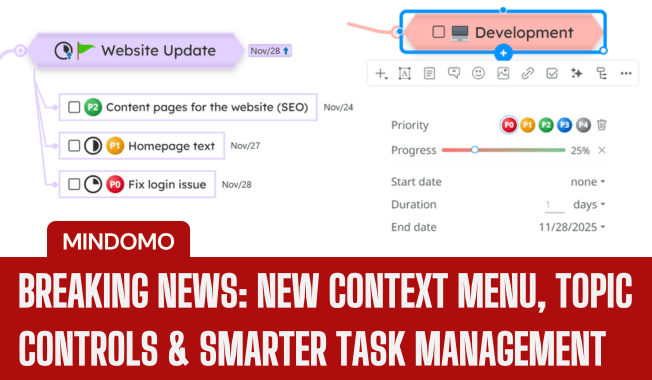
We’re excited to share a major update focused on improving speed, accessibility, and clarity in your diagramming workflow.
This release brings a redesigned context menu, new quick-action topic controls, and several task management improvements to help you work more efficiently than ever.
Here’s what’s new:
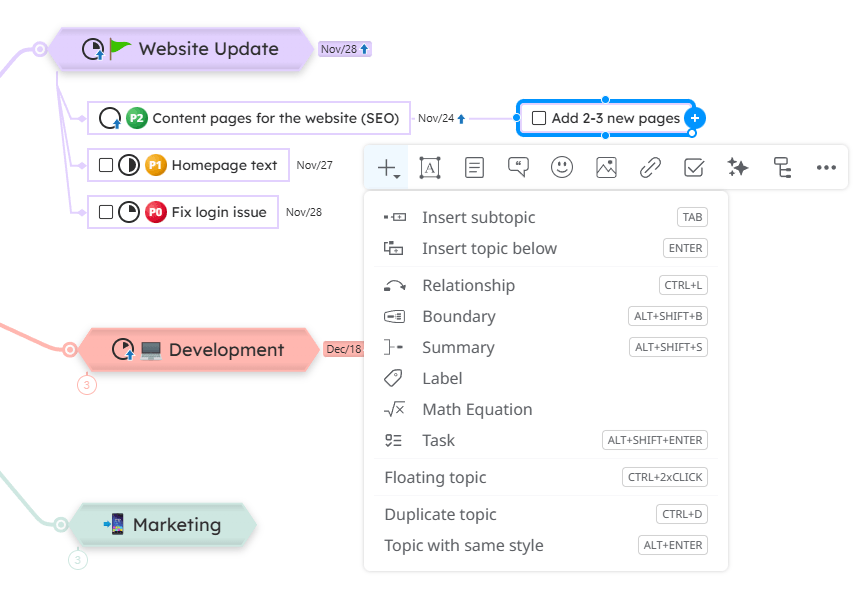
1. ✨ Reorganized context menu
We rebuilt the context menu for faster and easier access.
You’ll notice:
- ➡️ Cleaner structure: related options grouped intuitively
- ➡️ Fewer clicks to reach your favorite tools
- ➡️ Built-in keyboard shortcuts shown directly inside the menu
- ➡️ Clearer icons for quick recognition
This means less searching and more creating. Exactly how Mindomo is meant to feel.
2. 🔵 New blue bullets for one-click topic actions
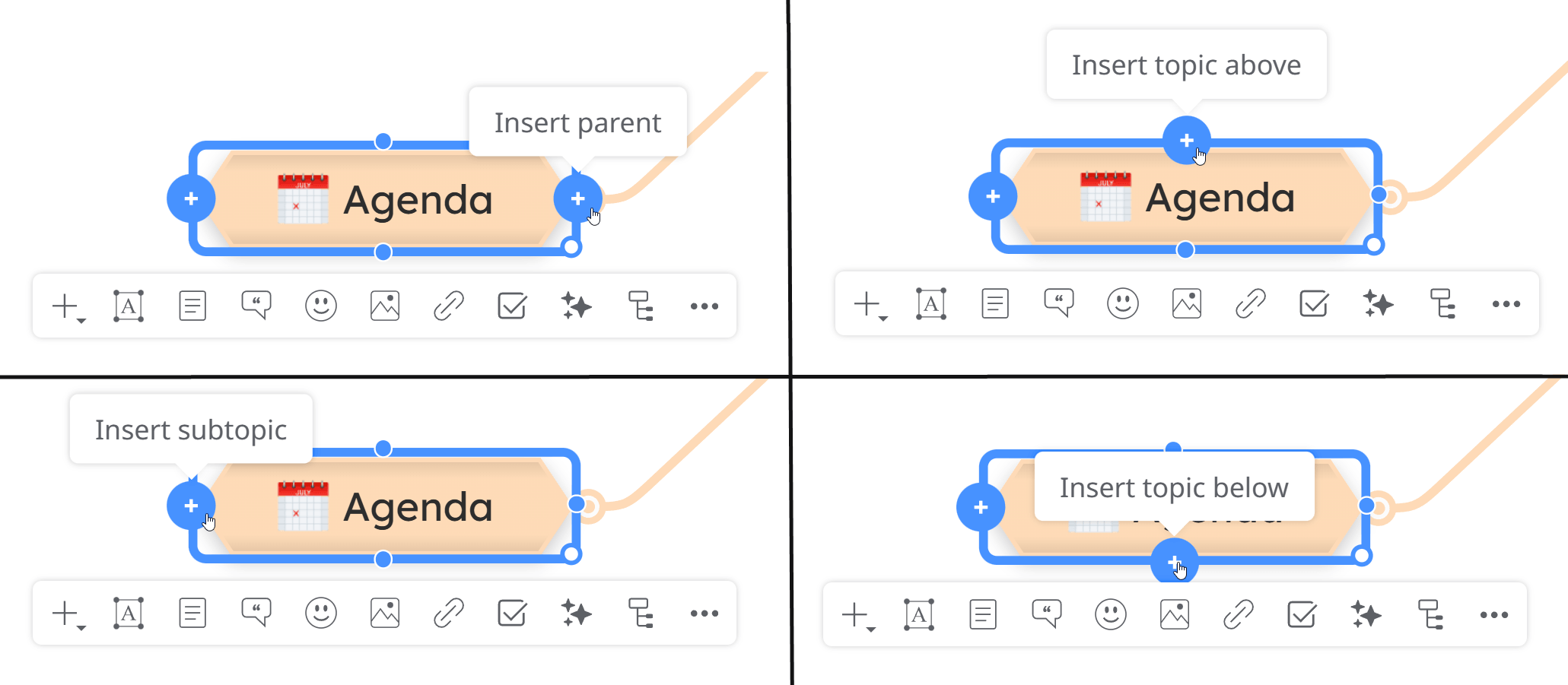
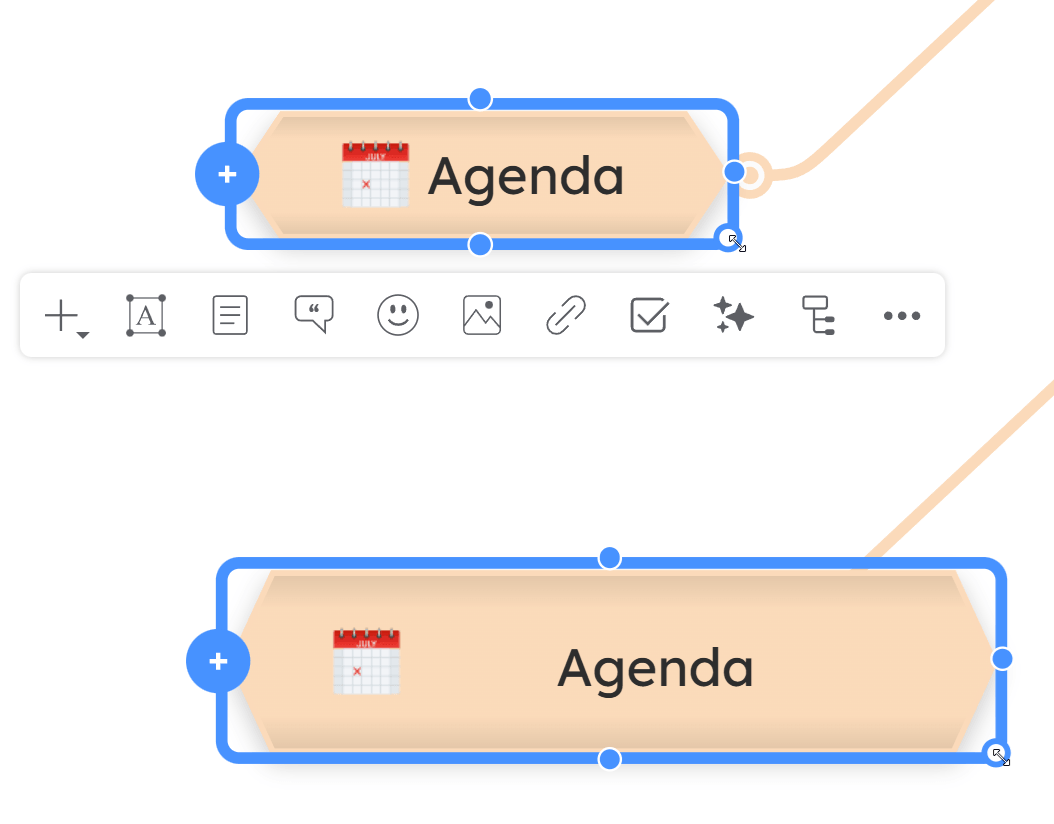
To streamline your diagramming flow, each selected topic now displays blue bullets that let you:
- Add a subtopic
- Add a topic above/below
- Add a parent topic
You can find more information about inserting new topics reading our dedicated help page.
3. ⚪ White corner bullet for topic resizing
Each selected topic now includes a white corner handle.
Drag it to resize your topic instantly. This is especially useful when working with long text or adjusting your layout, giving you more direct visual control over your map’s structure.
4. 🗂️ Task management upgrades
For users who manage tasks in Mindomo, we’ve introduced two major improvements:
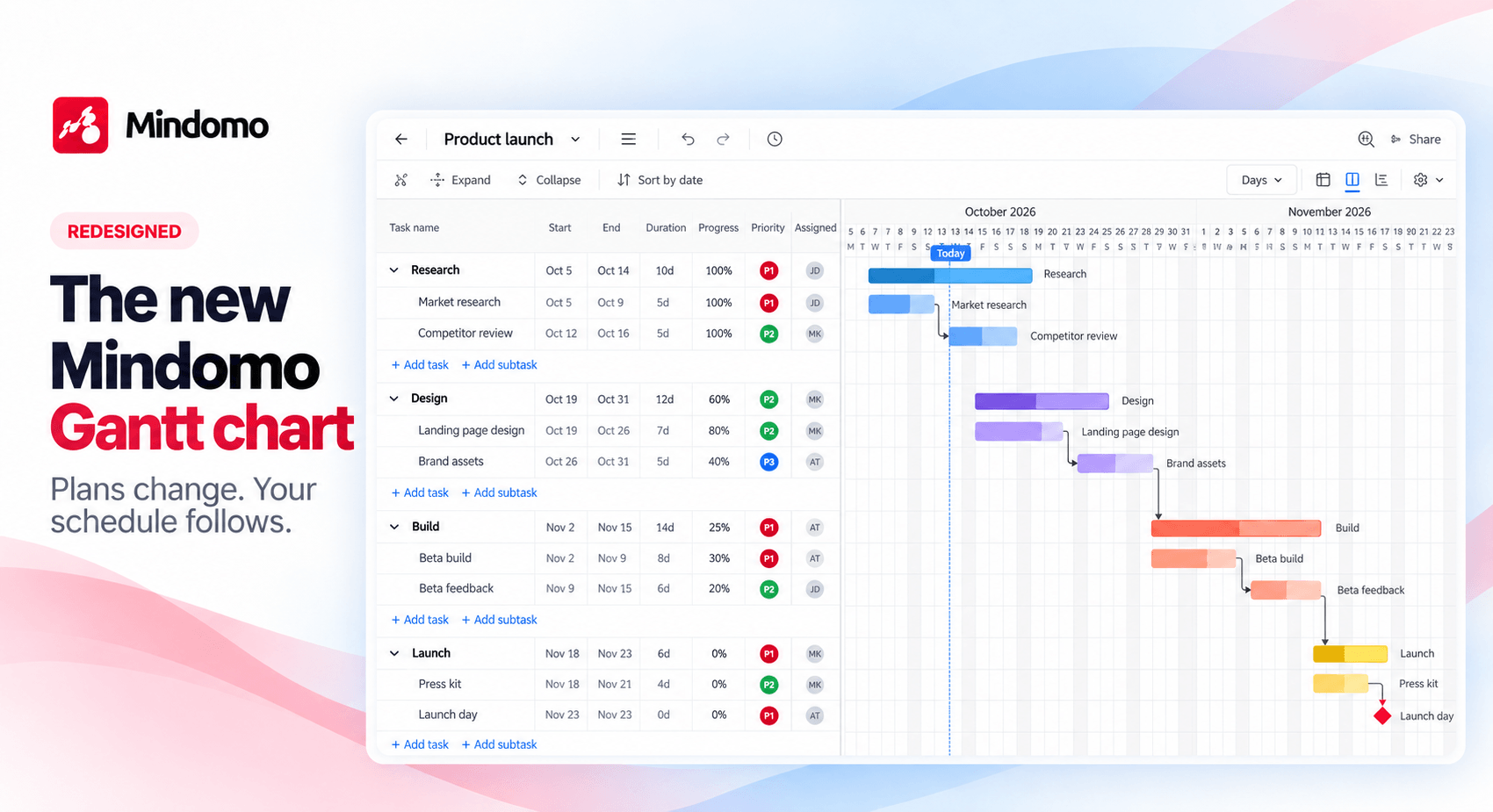
✔️ Redesigned priority system
We updated and standardized priority icons to internationally recognized color coding:
- P0 – Critical (red)
- P1 – High (orange)
- P2 – Medium (yellow)
- P3 – Low (blue)
- P4 – Very Low (gray)
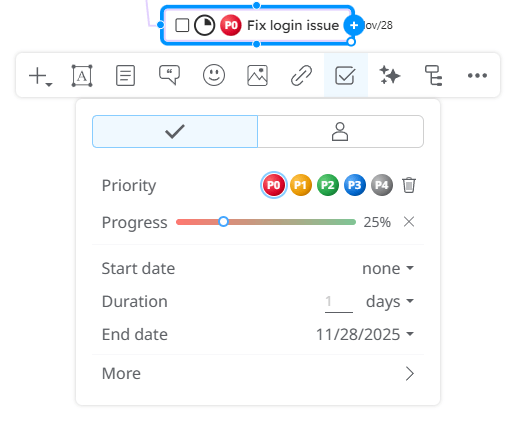
Clearer color-coding means faster scanning and better organization of your project workflows.
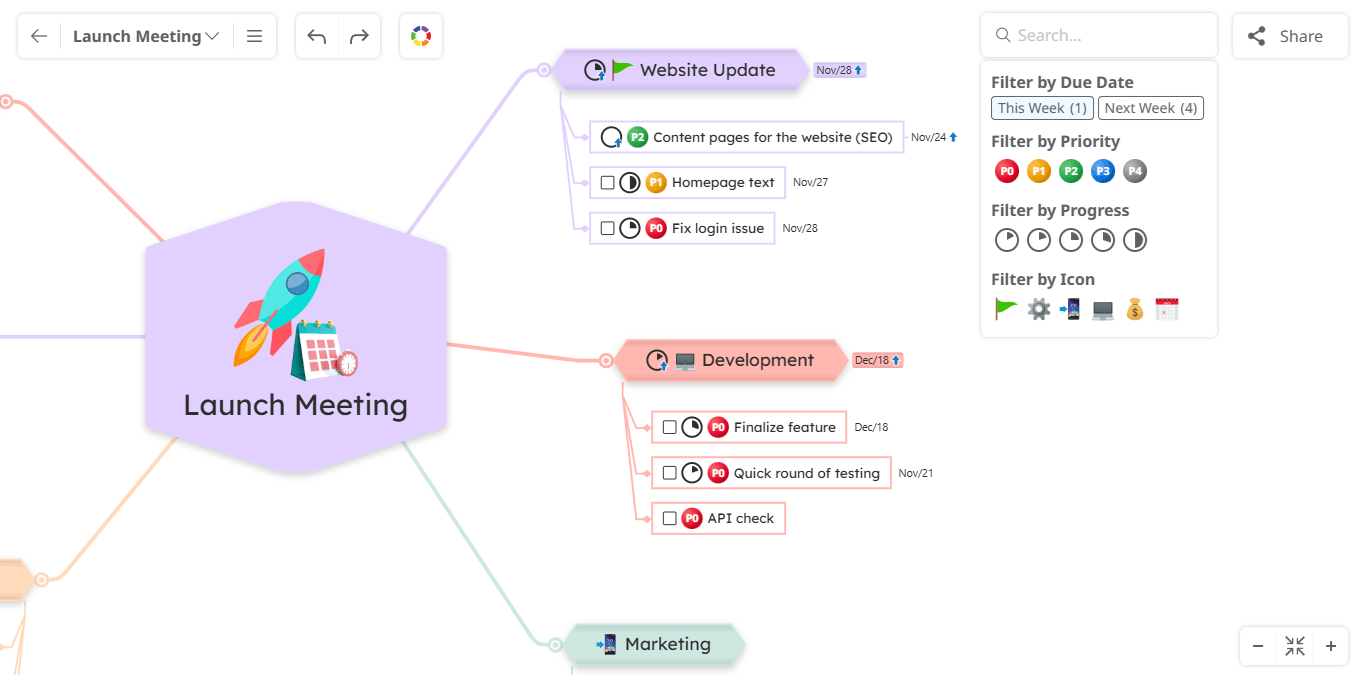
You can always filter tasks by priority level using the search button in the top-right corner of the screen.
✔️ Task roll-up calculations
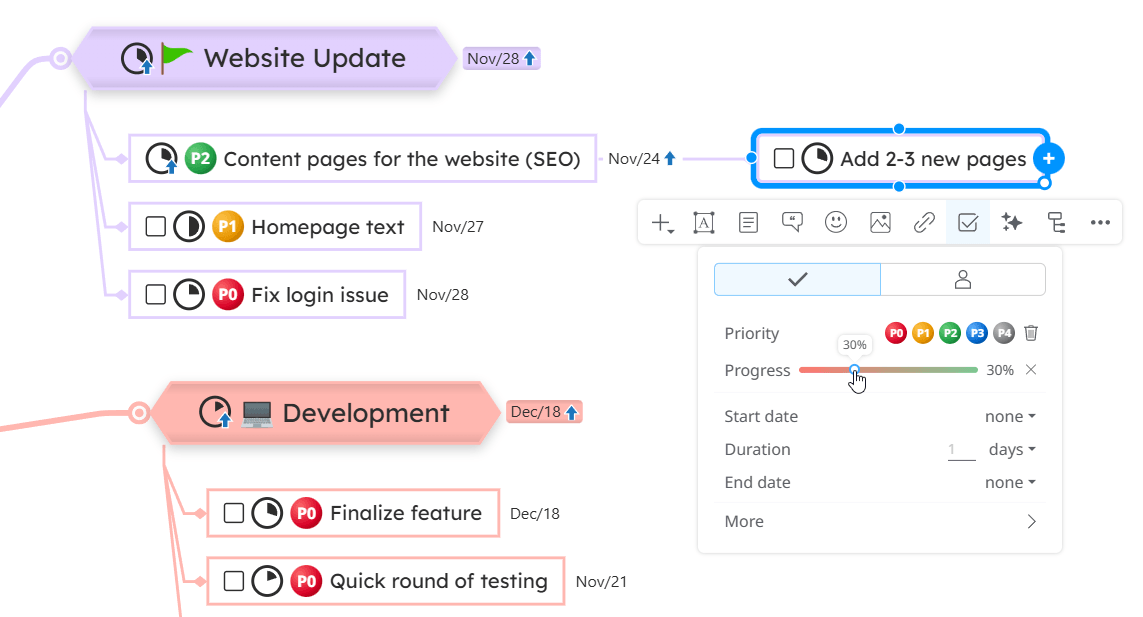
When this option is activated, the progress of a parent topic is automatically calculated based on the progress of its subtasks. This gives you accurate, real-time tracking across entire branches.
You will also see a progress indicator icon appear on the parent topic, showing the automatically calculated completion level.
All these updates were designed with one goal: to help you work faster, think more clearly, and focus on your ideas rather than the interface.
Try the new improvements and let us know how they support your workflow. Your feedback continues to shape Mindomo, and we’ll keep improving it for you.
🔄 Additional updates
Following your comments after this release, we’ve made two extra refinements to improve usability.
1️⃣ First, some users reported that when selecting a topic near the bottom of the screen, the context menu sometimes opened below the topic and extended outside the visible area, requiring extra scrolling. We’ve updated this behavior so the context menu now intelligently adjusts its position and opens above the topic whenever there isn’t enough space.
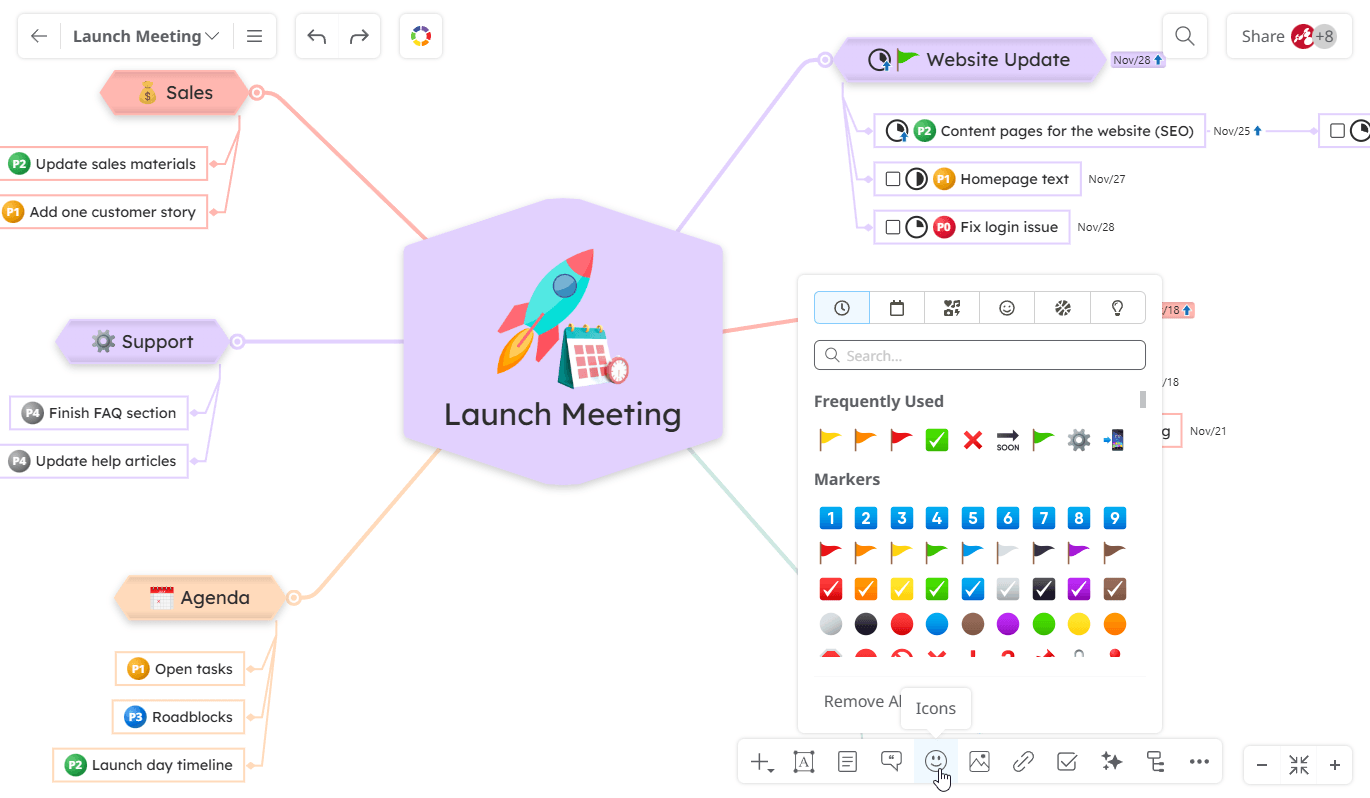
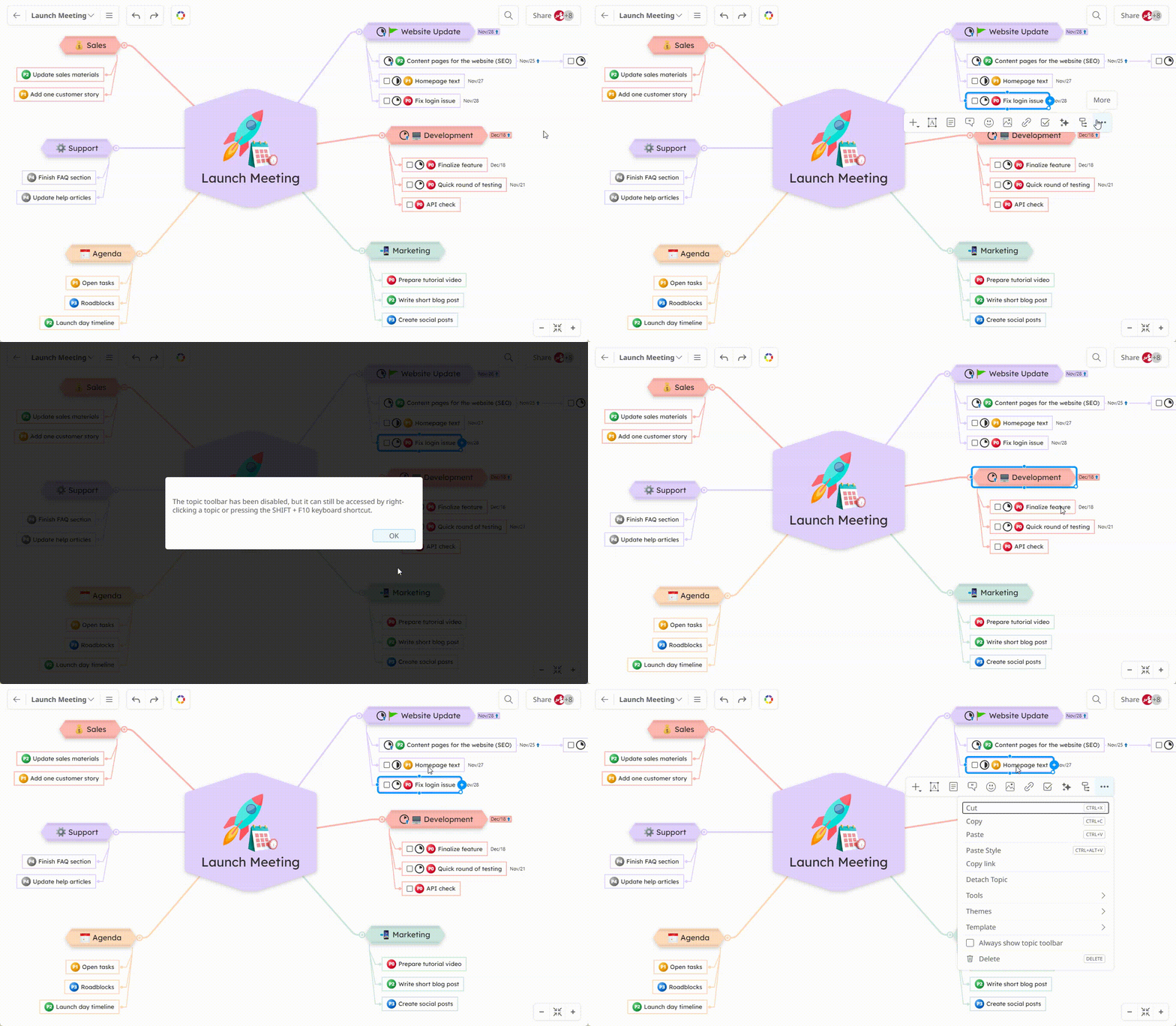
2️⃣ Second, many of you asked for the ability to select a topic without automatically displaying the topic toolbar. To address this, we added a new checkable option in the “More options” menu called “Always show topic toolbar.” It is enabled by default, but you can now uncheck it if you prefer a cleaner selection experience. When disabled, the toolbar stays hidden until you open the context menu manually with a right-click.
Keep it smart, simple, and creative!
Silvana
The Mindomo Team